
Liquid v15
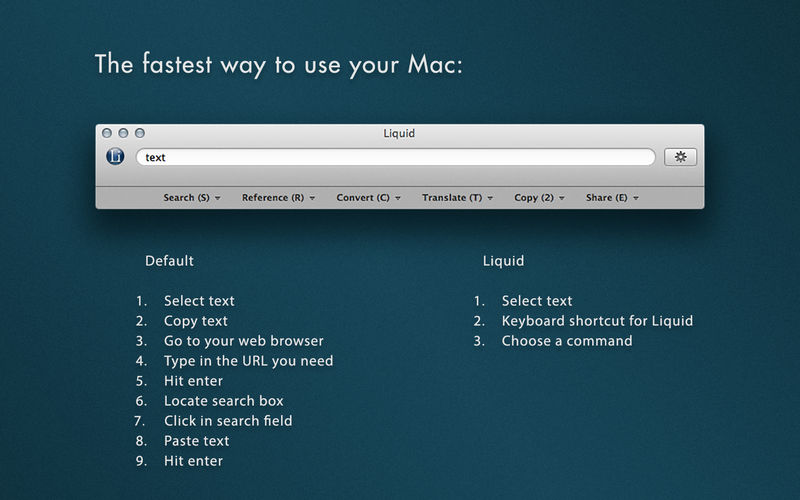

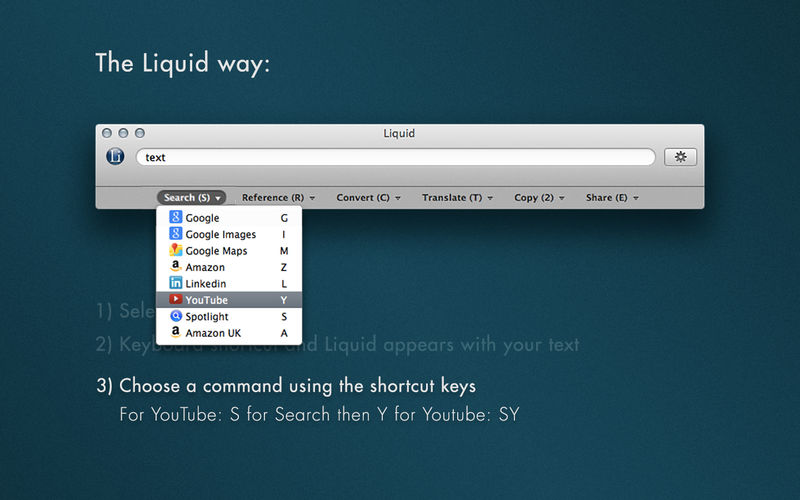
Commands become so quick you'll start flying through your information - you will work at the speed of thought, not at the speed of hunting for icons to click.
Note: Click on the ‘gears’ icon on the right in Liquid to access the Preferences.
Customise Keyboard Shortcut:
To change the Keyboard Shortcut to the more convenient command-space (or anything else you prefer), open System Preferences, click on Keyboard, make sure you are in the Shortcuts tab, then, in the column on the left:
1) Click on Spotlight and disable command-space
2) Click on Services and scroll down to Liquid and double-click on the current Liquid shortcut, then set it to be command-space (or whatever you prefer).
Reviews include:
- MacUser: Revolutionary
- CNN: A great tool
- BBC: So useful you’ll wonder how you ever managed without it
- Stephen Fry: Get used to it & you're hooked
- TUAW: One of those utilities that you can't live without once you start using it
Version 15:
- Improved WordPress functionality
Frequently asked questions
How do I install the app?
Mount the image, drag the app into the "Applications" folder and launch it. If the system blocks the launch, allow it in "System Settings → Privacy & Security".
The app is damaged or won't launch
Reinstalling from a fresh image usually helps. Make sure your macOS version matches the one listed in the compatibility specs.
How do I update?
Download the new version from the site and install it over the current one — your settings will be preserved.
The download link doesn't work
Try a mirror or a download manager. For large files the browser often drops the connection.
How do I completely remove the app?
Use an uninstaller utility — it cleans up the service files that remain after moving the app to the trash.
VersionLiquid v15
DeveloperFrode Hegland
CompatibilityOS X 10.8 or later, 64-bit processor
LanguageMultilangual
IncludesK'ed by TNT





Information
Visitors in the group Guests cannot leave comments on this publication.
Choose a download source
Liquid v15 · 6.06 MB