
Portfolio Bar 1.2.4

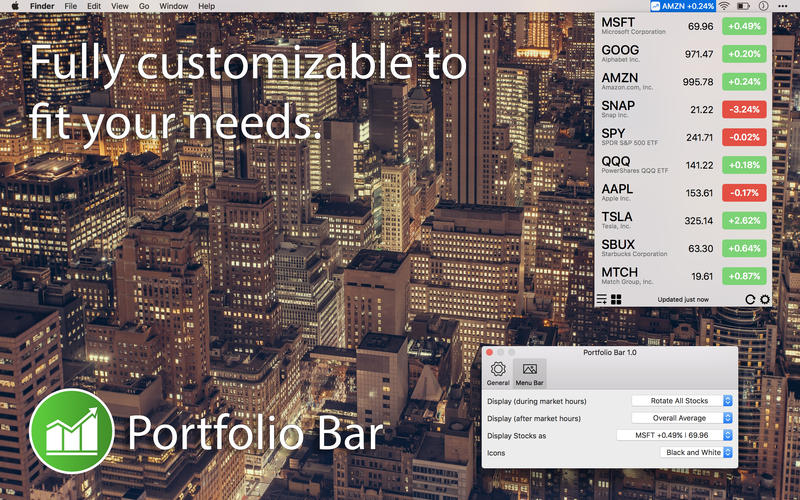
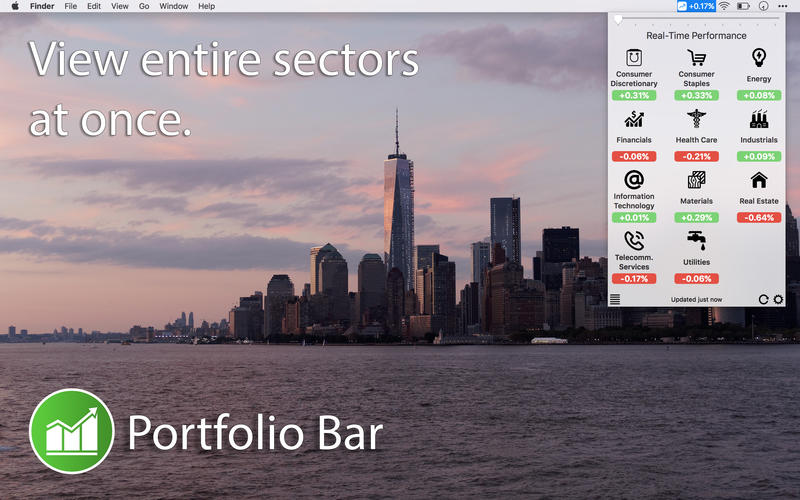
Portfolio Bar makes it easy to stay up to date on the stocks, ETFs and investments you care most about. With a highly customizable menu bar display you can track up to 20 of your favorite securities and get automatic background updates of their performance throughout the day. Portfolio Bar also makes it easy to view performance of 11 key sectors at a time, and compare across time periods.
Portfolio Bar makes use of deep integration with macOS including Touch Bar support, a global customizable keyboard shortcut, and support for light and dark modes.
You can customize Portfolio Bar to fit your needs, with the ability to show any of the following in your menu bar:
- Cycle through each stock every minute in the menu bar
- Show the top moving stock of your favorites
- Overall average change of your favorites
- Any individual stock
- Just an icon (with 3 sets of icons to choose from)
Portfolio Bar provides real-time quotes from the following indices around the world:
- Australian Securities Exchange: ASX
- Bombay Stock Exchange: BOM
- Borsa Italiana Milan Stock Exchange: BIT
- Canadian/Toronto Securities Exchange: TSE
- Deutsche Börse Frankfurt Stock Exchange: FRA or ETR
- Euronext Amsterdam: AMS
- Euronext Brussels: EBR
- Euronext Lisbon: ELI
- Euronext Paris: EPA
- London Stock Exchange: LON
- Moscow Exchange: MCX
- NASDAQ Exchange: NASDAQ
- NASDAQ OMX Copenhagen: CPH
- NASDAQ OMX Helsinki: HEL
- NASDAQ OMX Iceland: ICE
- NASDAQ OMX Stockholm: STO
- National Stock Exchange of India: NSE
- New York Stock Exchange: NYSE
- Singapore Exchange: SGX
- Shanghai Stock Exchange: SHA
- Shenzhen Stock Exchange: SHE
- Taiwan Stock Exchange: TPE
- Tokyo Stock Exchange: TYO
Version 1.2.4:
- Fix for stocks failing to update
Frequently asked questions
How do I install the app?
Mount the image, drag the app into the "Applications" folder and launch it. If the system blocks the launch, allow it in "System Settings → Privacy & Security".
The app is damaged or won't launch
Reinstalling from a fresh image usually helps. Make sure your macOS version matches the one listed in the compatibility specs.
How do I update?
Download the new version from the site and install it over the current one — your settings will be preserved.
The download link doesn't work
Try a mirror or a download manager. For large files the browser often drops the connection.
How do I completely remove the app?
Use an uninstaller utility — it cleans up the service files that remain after moving the app to the trash.
VersionPortfolio Bar 1.2.4
DeveloperReal Casual Games, LLC
CompatibilityOS X 10.11 or later, 64-bit processor
LanguageEnglish
IncludesK'ed by TNT



Information
Visitors in the group Guests cannot leave comments on this publication.
Choose a download source
Portfolio Bar 1.2.4 · 3.77 MB